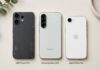

Getting a new phone is exciting—until you realize you have to move over years of photos, contacts, apps, and messages. The good news? In 2026, transferring data to a new device is easier than ever, whether you’re staying in the same ecosystem or switching sides. This guide walks you through the simplest methods for every scenario: Android to Android, iPhone to iPhone, and even cross-platform between Android and iPhone.
Table of Contents
- Before You Begin: Charge, Backup & Update
- Android to Android: The Quickest Methods
- iPhone to iPhone: iCloud, Quick Start & More
- Cross‑Platform: Android ↔ iPhone
- Using Cloud Services for Manual Transfer
- After Transfer: Verify Everything Moved
- Frequently Asked Questions
Before You Begin: Charge, Backup & Update
A few minutes of prep work will save you headaches later. Do these steps on both your old and new phones before starting any transfer.
- Charge both phones to at least 50%. Transfers can take a while and you don’t want a device dying mid-process.
- Update your old phone to the latest OS version. This ensures compatibility with transfer tools. For Android, go to Settings > System > System Update; for iPhone, Settings > General > Software Update.
- Connect to Wi‑Fi on both devices—some methods require the same network.
- Have your Google or Apple ID passwords handy. You’ll need them to restore backups.
- Back up your old phone one last time (even if you plan to transfer directly). Android: Settings > Google > Backup. iPhone: Settings > [your name] > iCloud > iCloud Backup. This gives you a safety net if something goes wrong.
Android to Android: The Quickest Methods
Moving data between two Android phones is seamless, especially if both are from the same manufacturer. You can use Google’s built‑in tools or the phone maker’s dedicated app.
Method 1: Google’s Automatic Restore (Simplest)
When you set up a new Android phone, it will prompt you to copy data from an old device. This uses Google’s backup service and works over Wi‑Fi.
- Turn on the new phone and follow the on-screen setup until you reach “Copy apps & data.”
- Tap Next, then select “Can’t use old device?” (if you don’t have the old phone nearby) or connect a USB‑C to USB‑C cable between both phones for a faster wired transfer.
- Sign in with the same Google account you used on your old phone.
- Choose which data to restore: apps, call history, contacts, device settings, SMS, and photos (if backed up to Google Photos).
- Let the process finish. Apps will reinstall automatically.
This method requires that your old phone was regularly backing up to Google Drive.
Method 2: Samsung Smart Switch (for Samsung Users)
If you’re switching from any Android (or even an iPhone) to a Samsung Galaxy, Samsung Smart Switch is the best tool. It transfers nearly everything: contacts, photos, messages, music, apps, home screen layout, and settings.
- Install Smart Switch on both phones from the Google Play Store (if not pre‑installed).
- Open the app on both devices, select “Transfer” on the new phone and “Send” on the old one.
- Connect wirelessly or via USB‑C cable. Follow the prompts to select what to move.
Other brands have similar tools: OnePlus Clone Phone, Xiaomi Mi Mover, and Google’s own Data Transfer Tool. Check your manufacturer’s app for the smoothest experience.
iPhone to iPhone: iCloud, Quick Start & More
Apple makes moving to a new iPhone effortless. Choose one of these three methods, depending on whether you have your old device and enough iCloud space.
Method 1: Quick Start (Direct Phone‑to‑Phone)
If you have both iPhones in hand, Quick Start is the fastest. It transfers all data directly via Wi‑Fi or a wired connection.
- Turn on the new iPhone and place it near the old one. The Quick Start screen appears on the old device.
- Follow the prompts to scan the animation with the old phone’s camera and enter your passcode.
- Choose “Transfer from iPhone” when asked how you want to move data.
- Agree to the terms and keep the phones close together until the transfer completes. A wired connection (Lightning to USB‑C cable) speeds it up.
Method 2: iCloud Backup Restore
If you don’t have the old phone or prefer a wireless restore, use iCloud Backup.
- On the old iPhone: Settings > [your name] > iCloud > iCloud Backup > Back Up Now.
- During new iPhone setup, choose “Restore from iCloud Backup.”
- Sign in with your Apple ID and pick the most recent backup.
This method requires enough iCloud storage. For help managing space.
Method 3: Restore from Mac or PC
You can also use a computer: connect the old iPhone, back up via Finder (Mac) or iTunes (Windows), then connect the new iPhone and restore that backup. Apple’s official guide has the exact steps.
Cross‑Platform: Android ↔ iPhone
Switching ecosystems used to be painful, but now it’s a straightforward process. Both Google and Apple offer official tools to help you move.
Android → iPhone: Move to iOS
Apple’s Move to iOS app (available on the Google Play Store) transfers contacts, message history, photos, videos, mail accounts, and calendars. It can even migrate your WhatsApp data.
- Before starting, ensure the Android phone has the Move to iOS app installed and Wi‑Fi is on.
- On the new iPhone, during setup, choose “Move Data from Android.”
- A one‑time code appears; enter it in the Move to iOS app on the Android phone.
- Select the data types you want to transfer. Be patient—large media libraries can take over an hour.
iPhone → Android: Switch to Android
Google’s Switch to Android app (available on iOS) simplifies moving to a Pixel or any Android 12+ phone. It copies contacts, calendar, photos, and videos. For apps, Google Play will suggest equivalents.
- Install Switch to Android from the App Store on your iPhone.
- During Android setup, scan a QR code or connect with a cable.
- Select what to transfer; the app will handle the rest.
Some data, like SMS history and WhatsApp chats, may require a third‑party tool (e.g., Dr.Fone or AnyTrans) unless the apps support native migration.
Using Cloud Services for Manual Transfer
If you only need to move specific files—like photos, documents, or music—cloud storage is a flexible, no‑cable solution.
- Google Photos / iCloud Photos: Turn on automatic backup on the old phone; install the same app on the new phone and sync your library.
- Google Drive, Dropbox, or OneDrive: Upload folders of documents from the old phone, then download them on the new one. Most offer free tiers up to 15 GB.
- Email & Contacts: Add your Gmail or Outlook account to the new phone—all synced contacts, calendar entries, and emails appear instantly.
- Music & Streaming: Sign back into Spotify, Apple Music, or YouTube Music; your library and playlists sync automatically.
Cloud transfers are also handy if you set up the new phone as a fresh device and only want to pull down selected data later.
After Transfer: Verify Everything Moved
Don’t just assume the transfer was perfect. A quick check saves you from discovering missing contacts weeks later.
- Contacts: Open the Phone/Contacts app; scroll through to ensure all entries are there.
- Photos & Videos: Check the Gallery/Photos app. Counts might be slightly off if large videos are still syncing.
- Messages: Open your messaging app; look for recent conversations.
- Apps: Browse your app drawer or home screen. Sign in to apps that require re‑authentication.
- Home Screen Layout: If that didn’t transfer (common cross‑platform), manually rearrange icons or use a launcher backup on Android.
Keep your old phone for at least a week—just in case you find something missing and need to manually pull it over. Once you’re confident everything is copied, perform a factory reset on the old device before selling or recycling it.
Frequently Asked Questions
Can I transfer data from a broken or dead phone?
If the phone powers on but the screen is broken, connect it to a computer and use manufacturer software (iTunes, Samsung Smart Switch) to extract data. If it’s completely dead, you’ll need a professional data recovery service, which can be expensive. Always maintain a current cloud backup to avoid this situation.
Does transferring data delete everything from the old phone?
No. Transferring copies data; the old phone remains unchanged. You should manually erase it after you confirm the new phone has everything.
How long does a phone data transfer take?
It depends on the amount of data. A few gigabytes over Wi‑Fi may take 15–30 minutes. 100 GB or more could take several hours. A USB‑C cable transfer is significantly faster—use it when possible.
Will my apps and passwords transfer automatically?
On iPhone‑to‑iPhone, most apps and passwords transfer seamlessly thanks to iCloud Keychain. Android‑to‑Android also moves many apps with their data if restored from a Google Backup. Cross‑platform, you’ll need to redownload apps and log in manually.
Do I need a SIM card to transfer data?
No. Data transfer works over Wi‑Fi or cable; the SIM only handles cellular service. You can complete the entire migration without a SIM, then insert it later.