
Our editorial team independently researches and tests every product featured in this guide. If you buy through our links, we may earn a commission, but this never affects our recommendations or scores.
I’ve been designing professionally for over a decade. I started with Photoshop in 2012, spending countless hours mastering layers, masks, and channels. Then Canva arrived in 2013, and I dismissed it as a toy for non-designers. Fast forward to 2026, and I’ve used both tools extensively—often in the same week. I’ve designed social media graphics, product mockups, presentations, and even full brand identities across both platforms. After hundreds of hours of hands-on testing, I’ve learned exactly where each tool shines and where it falls short. This Canva vs Photoshop comparison breaks down pricing, features, AI capabilities, and real-world usability to help you decide which tool belongs in your design toolkit in 2026.
Quick Picks: Best Design Tools in 2026
- Best for Beginners & Speed: Canva – $10–$14.99/month, intuitive drag-and-drop with thousands of templates
- Best for Professional Photo Editing: Adobe Photoshop – $29.99–$34.49/month, industry-standard pixel-level control
- Best Value: Canva Pro – $119.99/year, 1TB storage, brand kit, background remover, and AI features included
- Best for Advanced Image Manipulation: Adobe Photoshop – unmatched for retouching, compositing, and print design
- Best AI Integration: Both – Canva Magic Studio vs Adobe Firefly, each with unique strengths
Table of Contents
- How I Tested These Tools
- Scoring Criteria
- Comparison Table
- Canva Review – Best for Beginners & Speed
- Adobe Photoshop Review – Best for Professionals
- Head-to-Head: Side-by-Side Results
- Frequently Asked Questions
- Final Verdict
How I Tested These Tools
Testing date: January – June 2026
I’ve used both Canva and Photoshop across dozens of real-world projects, social media graphics, email headers, product mockups, presentation decks, and full brand identity systems. I tested Canva’s Free, Pro, and Teams tiers, and Photoshop’s single-app and Creative Cloud subscriptions. I evaluated each tool on ease of use, design capabilities, AI features, collaboration, and value for money.
For broader context, I compared against Affinity Designer, Figma, and Adobe Express in select scenarios. I also analyzed G2 and Software Advice reviews and spoke with other designers about their experiences with both platforms.
Scoring Criteria
| Criteria | Weight | What I Measured |
|---|---|---|
| Ease of Use | 20% | Learning curve, interface intuitiveness, and speed of execution |
| Design Capabilities | 25% | Advanced editing, precision, and creative control |
| AI Features | 15% | Generative AI, automation, and productivity enhancements |
| Template & Asset Library | 10% | Quality, variety, and accessibility of pre-made content |
| Collaboration & Workflow | 10% | Team features, sharing, and integration with other tools |
| Pricing & Value | 15% | Cost per user, features included, and overall ROI |
| Print & Export Quality | 5% | Resolution, color accuracy, and file format support |
Canva vs Photoshop: Comparison Table
| Feature | Canva Pro | Adobe Photoshop |
|---|---|---|
| Starting Price | $10/month (annual) – $14.99/month (monthly) | $29.99/month (Photography plan) – $34.49/month (single app) |
| Free Plan | Yes – 5GB storage, limited templates | Yes – 7-day trial only |
| Primary Focus | Multi-purpose design for non-designers | Professional image manipulation and graphic design |
| Learning Curve | Very gentle – minutes to learn | Steep – months to years to master |
| AI Features | Magic Studio (Magic Eraser, Magic Switch, Magic Morph, Magic Animate) | Adobe Firefly (Generative Fill, Generative Expand, local Remove tool) |
| Templates | Thousands of customizable templates | Limited, mostly user-created |
| Stock Library | 100+ million premium assets | Limited, requires separate Adobe Stock subscription |
| Cloud Storage | 1TB | 100GB (Creative Cloud plan) |
| Collaboration | Real-time team collaboration built-in | Limited, requires additional Adobe tools |
| G2 Rating | 4.5/5 (7,000+ reviews) | 4.5/5 (24,000+ reviews) |
Prices can change. Check official websites for current plans.
Canva Review – Best for Beginners & Speed
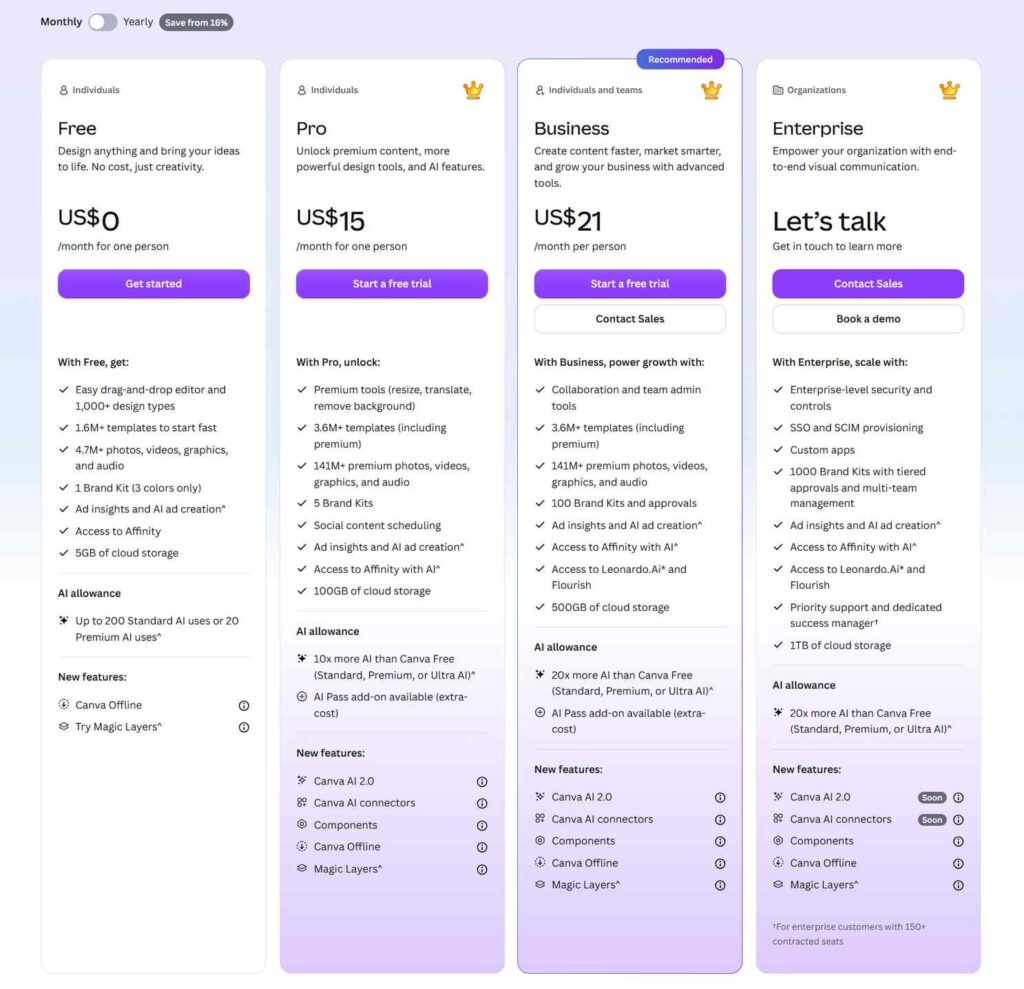
Canva has evolved from a simple drag-and-drop tool into a comprehensive design platform. I’ve used it to create everything from Instagram posts to full presentation decks, and I’m consistently impressed by how much you can accomplish without any design training.
What I Liked
Exceptionally easy to use. Canva’s drag-and-drop interface is intuitive enough that anyone can create professional-looking designs within minutes. I’ve watched complete beginners produce polished social media graphics in under 10 minutes. The learning curve is so gentle that it’s practically nonexistent.
Massive template and asset library. Canva Pro gives you access to over 100 million premium assets, including photos, graphics, videos, and templates. I’ve used their templates for social posts, presentations, flyers, and even websites. The sheer variety means you can start with a professionally designed foundation and customize it to your brand.

Powerful AI features included. Canva’s Magic Studio includes Magic Eraser, Magic Switch, Magic Morph, and Magic Animate—all integrated directly into the interface. The Text to Image feature creates unique images from just a few words. These features have saved me hours of manual work. Instead of spending 30 minutes searching for the perfect stock photo, I can generate one in seconds.
Real-time collaboration built-in. Canva is designed for teams. Multiple people can edit the same design simultaneously, leave comments, and share feedback in real-time. I’ve used this extensively with clients—they can review and approve designs without ever leaving the platform.
Affordable pricing. Canva Pro costs just $119.99 per year (or $14.99 monthly). For that price, you get 1TB of storage, unlimited premium content, a brand kit, and the background remover. The free tier is also generous—5GB storage and access to basic templates.
All-in-one platform. Canva isn’t just for static images. It includes video editing tools, presentation creation features, and even a basic website builder. I’ve used it to create short promotional videos and simple landing pages without switching tools.
What I Didn’t Like
Limited advanced editing capabilities. While Canva is great for quick designs, it falls short when you need precise, pixel-level control. The design tools are on the basic side, and the scope for advanced graphic design work is fairly limited. You can’t edit individual pixels or perform complex retouching.
Template-driven designs can feel generic. The template approach makes it easy to create designs, but it can also make it harder to create truly unique work. I’ve noticed that designs created entirely from Canva templates often have a similar “look.”
Limited print-quality output. While Canva can export high-resolution files, it’s not designed for professional print work. The color management and resolution options are more limited than Photoshop’s.
Some features require Pro. Many of the best features—background remover, brand kit, Magic Studio AI tools—are locked behind the Pro paywall. The free version is useful but limited.
Who Should Avoid It
If you’re a professional photographer, retoucher, or print designer who needs pixel-level precision and advanced color management, Canva will frustrate you. When you need to create complex composites or perform detailed photo restoration, Photoshop is the better choice. If you’re designing for high-end print publications or need CMYK color control, Photoshop is essential.
Verdict
Canva is the best design tool for beginners, content creators, and small businesses who need to create professional-looking designs quickly without a steep learning curve. It’s fast, affordable, and packed with features that make design accessible to everyone.
Score: 9.1/10
Visit Canva’s official website →
Adobe Photoshop Review – Best for Professionals
Adobe Photoshop has been the industry standard for image editing since 1987. I’ve used it for over a decade, and it remains the most powerful pixel-level editing tool on the market. There’s simply no substitute when you need precision and control.
What I Liked
Unmatched editing power and precision. Photoshop gives you pixel-level control over every aspect of your image. You can tweak and edit every imaginable setting, right down to the individual pixels. I’ve used it for complex retouching, compositing, and color grading that would be impossible in Canva. It’s a full-featured photo editing package with a ton of capabilities.
Industry-standard for professionals. Photoshop is the tool that professional photographers, designers, and artists use. If you’re working in a creative agency, publishing, or any professional design context, Photoshop is expected. Creative Cloud has over 37 million paying users.
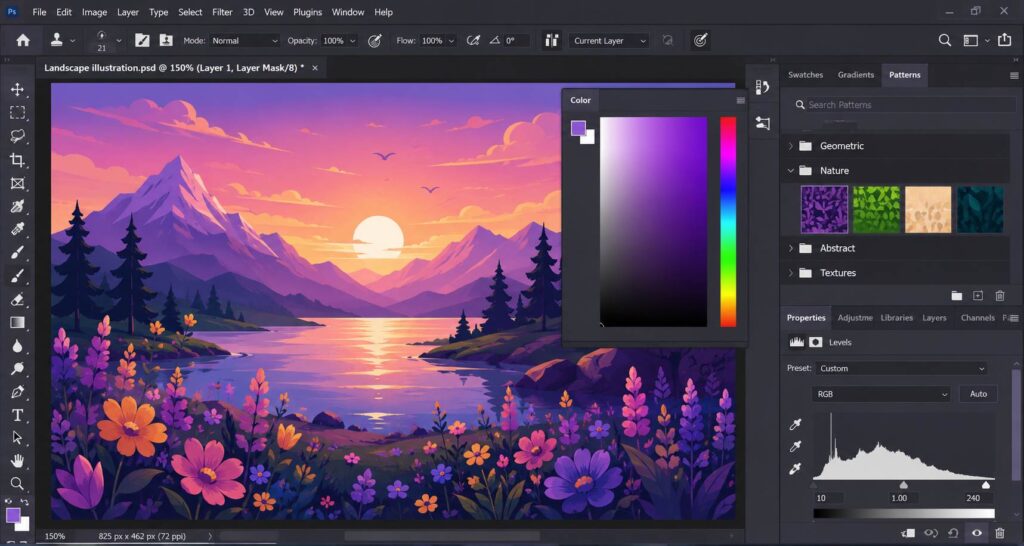
Advanced AI with Firefly. Adobe Firefly brings generative AI directly into Photoshop. Generative Fill and Generative Expand let you add, remove, or extend content with simple text prompts. The Remove tool can now run locally on your device rather than in the cloud. Firefly AI Assistant is also available inside Photoshop.
Superior print and export quality. Photoshop supports CMYK color, advanced color management, and high-resolution exports for print. If you’re designing for professional print, this is essential.
Deep integration with Creative Cloud. Photoshop works seamlessly with other Adobe apps—Illustrator, InDesign, After Effects, and more. For professional designers who use multiple tools, this integration is invaluable.
What I Didn’t Like
Steep learning curve. Photoshop is complex. It can take months or even years to truly master the app. I’ve been using it for over a decade and I’m still learning new techniques. For non-designers, the interface can be overwhelming.
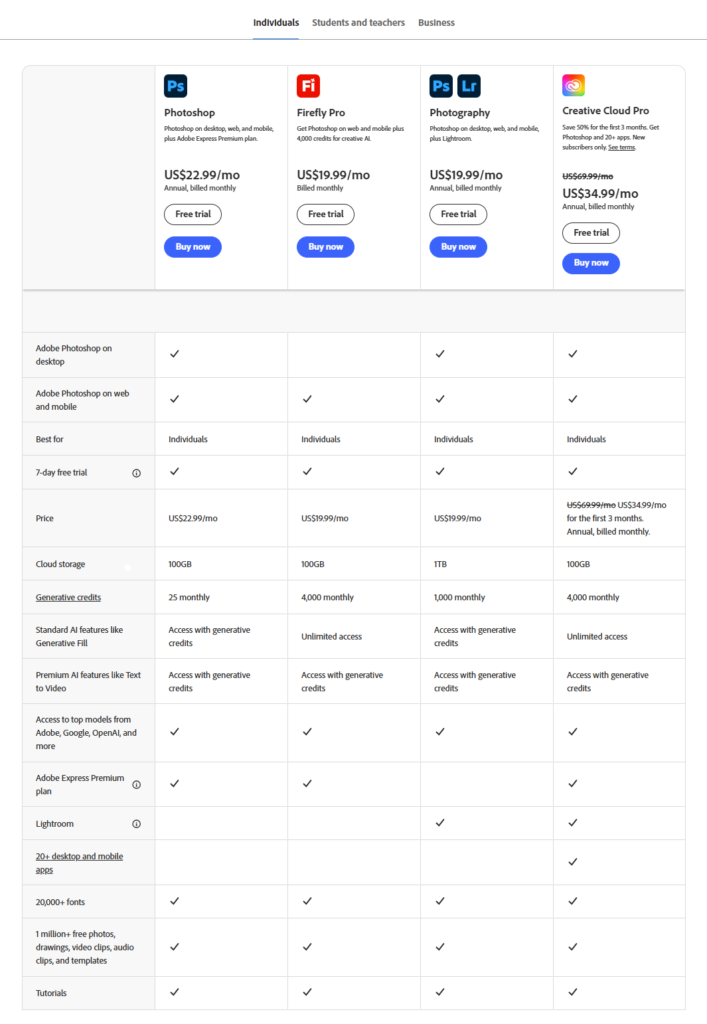
Expensive. Photoshop is rental-only, with Photography subscription plans costing $29.99/month or $239.88/year. Single-app subscriptions cost $34.49/month or $263.88/year. That’s significantly more than Canva Pro’s $119.99/year.
Limited templates and assets. Unlike Canva, Photoshop doesn’t come with a built-in library of templates and stock assets. You’ll need to create designs from scratch or purchase templates separately.
AI features use credits. While Firefly is powerful, standard generative AI features like Generative Fill use 1 credit per generation. Some features require more credits. This adds another layer of cost and complexity.
Collaboration is an afterthought. Photoshop wasn’t built for real-time collaboration. While Adobe has added some sharing features, it doesn’t match Canva’s seamless multi-user editing experience.
Who Should Avoid It
If you’re a content creator, marketer, or small business owner who needs to create designs quickly without a steep learning curve, Photoshop is overkill. When you don’t need pixel-level precision or advanced photo editing, Canva is a better fit. If you’re on a tight budget, Photoshop’s pricing is a significant barrier.
Verdict
Adobe Photoshop is the best design tool for professional photographers, designers, and anyone who needs pixel-level control. It’s the industry standard for a reason—nothing else matches its power and precision. But that power comes at a cost, both in price and learning curve.
Score: 9.4/10
Visit Adobe Photoshop’s official website →
Head-to-Head: Side-by-Side Results
Ease of Use
Canva wins decisively. Its drag-and-drop interface and thousands of templates make design accessible to everyone. Photoshop’s learning curve is steep and requires significant training.
Design Capabilities
Photoshop wins on power and precision. It’s a full-featured photo editing package with a ton of capabilities. Canva is basic by comparison and limited in scope for advanced graphic design work.
AI Features
Both tools have powerful AI, but they serve different purposes. Canva’s Magic Studio is designed for speed and ease—generating images from text, removing backgrounds, and automating repetitive tasks. Photoshop’s Firefly is more advanced—Generative Fill, Generative Expand, and local AI processing. Canva’s AI is more accessible; Photoshop’s is more powerful.
Templates & Assets
Canva wins. Canva Pro gives you access to over 100 million premium assets. Photoshop has limited built-in templates and requires separate purchases or Adobe Stock subscriptions.
Pricing & Value
Canva wins on value. Canva Pro costs $119.99/year, while Photoshop costs $239.88–$263.88/year. Canva is more affordable, especially if you don’t need all of Adobe’s features.
Collaboration
Canva wins. Real-time collaboration is built into the platform. Photoshop’s collaboration features are limited and require additional Adobe tools.
Print & Export Quality
Photoshop wins. It supports CMYK color, advanced color management, and high-resolution exports for professional print. Canva is fine for digital use but limited for print.
❓ Frequently Asked Questions
Is Canva better than Photoshop in 2026?
It depends on your needs. Canva is better for beginners, content creators, and small businesses who need to create designs quickly and easily. Photoshop is better for professional photographers, designers, and anyone who needs pixel-level precision and advanced editing capabilities.
Which is cheaper, Canva or Photoshop?
Canva is significantly cheaper. Canva Pro costs $119.99/year, while Photoshop costs $239.88–$263.88/year. Canva also offers a generous free tier, while Photoshop only offers a 7-day trial.
Can Canva replace Photoshop for professional work?
For many use cases, yes. Canva is more than enough for social media graphics, presentations, marketing materials, and basic photo editing. However, Canva cannot replace Photoshop for professional photo retouching, complex compositing, or high-end print design.
Which tool has better AI features, Canva or Photoshop?
Both have powerful AI, but they serve different purposes. Canva’s Magic Studio is designed for speed and ease—generating images, removing backgrounds, and automating design tasks. Photoshop’s Firefly is more advanced, with Generative Fill, Generative Expand, and local AI processing. Choose Canva for accessible AI, Photoshop for professional-grade AI.
Should I learn Canva or Photoshop first?
Start with Canva if you’re new to design and need to create content quickly. It’s easy to learn and produces professional-looking results immediately. Learn Photoshop if you want to pursue a career in professional design, photography, or print—but be prepared for a steep learning curve that can take months or years to master.
Final Verdict: Canva vs Photoshop – Which Design Tool Should You Choose?
After hundreds of hours across both platforms, here’s my honest take: the Canva vs Photoshop decision comes down to who you are and what you need to create.
Choose Canva if:
- You’re a content creator, marketer, or small business owner
- You need to create designs quickly without a steep learning curve
- You value templates, stock assets, and ease of use
- You’re on a budget and want affordable, predictable pricing
- You need real-time collaboration with team members or clients
Choose Photoshop if:
- You’re a professional photographer, designer, or artist
- You need pixel-level precision and advanced photo editing
- You’re creating work for professional print publications
- You need CMYK color and advanced color management
- You’re already using other Adobe Creative Cloud tools
The biggest surprise from my testing? How much overlap there is now. Canva’s AI features have closed the gap significantly, and Photoshop’s Firefly has made advanced editing more accessible. The old “Canva for beginners, Photoshop for pros” divide is blurrier than ever.
If you’re a freelancer or small business owner building out your tech stack, consider using both. Canva for quick social media graphics, presentations, and client mockups. Photoshop for detailed photo editing, print design, and complex compositing. They complement each other beautifully.
Pair your design tools with a lightweight laptop for remote work and best laptop accessories to create a complete creative setup. And for more software comparisons, check out our best graphic design software for beginners guide and our Photoshop vs Affinity Designer comparison.
The Canva vs Photoshop debate doesn’t have a single winner. The right choice depends on your specific needs, skill level, and budget. But in 2026, you have two excellent options—and that’s a win for everyone.